


Manual

What can MUAYTHAI WiFi do?

When you rent MUAYTHAI WiFi, you can instantly connect your smartphone or computer to the internet!

MUAYTHAI WiFi is suitable for situations where you need urgent internet, such as returning to Thailand temporarily, moving house, sudden internet outages at home, hospitalization, or working remotely (Work From Everywhere). You can connect MUAYTHAI WiFi to all WiFi-enabled devices, such as computers, smartphones, tablets, and more.

WiFi is a wireless network system, which is an international standard that supports all devices, no matter where they are produced in the world . In addition, MUAYTHAI WiFi can connect multiple devices at the same time. Some customers choose to rent only one device and share it with a group of 2-3 people during their trip to save on costs.

For MUAYTHAI WiFi, you can choose the rental period from a short period of 1 day to a long period. In addition, there is unlimited internet data service at a reasonable price. Unlimited use at the same price without worrying about bill shock.

What does the set include?

ตัวเครื่อง Pocket WiFi ในชุดเช่า
Pocket WiFi device

Shareable across 5 devices
with continuous use for 7 to 10 hours.

ชุดชาร์จ อะแดปเตอร์และสาย USB สำหรับ Pocket WiFi
Charging set

-Type A plug
-USB A to Micro USB charging cable

กระเป๋าใส่อุปกรณ์ Pocket WiFi
Bag

Compact bag
designed to organize and
divide equipment efficiently

แบตเตอรี่สำรองสำหรับ Pocket WiFi (แพ็กเสริม)
Power Bank
(Additional pack)

For longer usage
Only 50 THB/day

WiFi connection

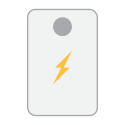
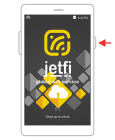
กดปุ่มเปิด-ปิดค้าง 3-5 วินาที เพื่อเปิดเครื่อง Pocket WiFi

Press and hold the ON/OFF button for about 3-5 seconds to turn on the device.

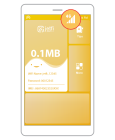
หน้าจอเครื่อง Pocket WiFi แสดงสัญญาณ 4G พร้อมใช้งาน

After turning on the device, wait for the device to catch the signal for 2-3 minutes. When it shows 4G, it is ready to connect and use.

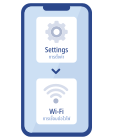
เชื่อมต่อมือถือกับ Pocket WiFi ผ่านเมนู Settings แล้วเลือก WiFi

Go to your mobile device
Settings> WiFi Then select our WiFi and enter the password to connect.

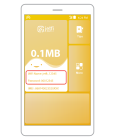
หน้าจอเครื่องแสดงชื่อ WiFi และรหัสผ่านสำหรับเชื่อมต่อ

The WiFi name and password will be displayed on the device screen.

Troubleshooting usability issues

SIM1 settings

ลำดับเมนูตั้งค่าซิม More แล้ว SIM manager แล้วเลือก SIM1

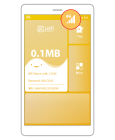
Select “More”

หน้าจอเมนู More ของเครื่อง เลือก SIM manager

Select “SIM manager”

หน้าจอ SIM manager เลือก SIM1 แล้วกด Enter

Select “SIM1” then press “Enter”

รอเครื่องจับสัญญาณ 2-3 นาที จนขึ้น 4G

Wait for the device to receive the signal for 2-3 minutes. When it shows 4G, it is ready to connect and use. If it still does not show 4G, set the APN. See how to set the APN.

APN settings

ลำดับเมนูตั้งค่าซิม More แล้ว SIM manager แล้วเลือก SIM1

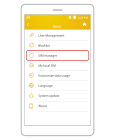
Select “More”

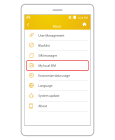
หน้าจอเมนู More ของเครื่อง เลือก My local SIM

Select “My local SIM”

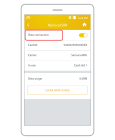
หน้าจอ My local SIM เลือก Data connection

Select “Data connection”

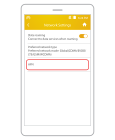
หน้าจอ Data connection เลือกเมนู APN

Select “APN”

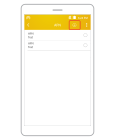
หน้าจอ APN กดเครื่องหมายบวกเพื่อเพิ่มค่าใหม่

Select “(+)”

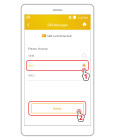
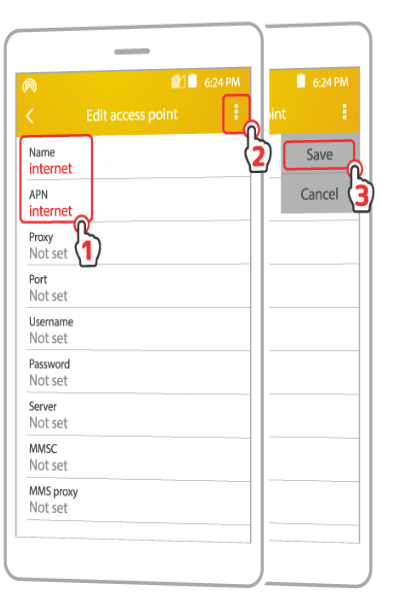
Android APN settings screen - enter "internet" in Name and APN, then tap the top-right menu and Save

Enter Name and APN as internet (all uppercase) then click Save.

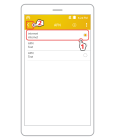
หน้าจอเลือก APN ที่เพิ่มไว้ แล้วกลับหน้าหลัก

Select the APN we just did, then return to the home page.

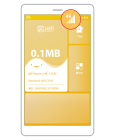
รอเครื่องจับสัญญาณ 2-3 นาที จนขึ้น 4G พร้อมเชื่อมต่อ

Wait for the device to receive the signal for 2-3 minutes. When it shows 4G, it is ready to connect and use.

Ask for more information

Available via Facebook or by phone at +66 2-491-0000
Open 365 days a year

Customer holding a MUAYTHAI WiFi pocket WiFi, ready to use - ask us on Facebook or by phone, open 365 days a year

มือถือรุ่นและยี่ห้อ
ที่รองรับการใช้งาน

eSIM

  • iPhone XR
  • iPhone XS / XS Max
  • iPhone 11 / 11 Pro / 11 Pro Max
  • iPhone SE 2 (2020)
  • iPhone SE 3 (2022)
  • iPhone 12 / 12 Mini / 12 Pro / 12 Pro Max
  • iPhone 13 / 13 Mini / 13 Pro / 13 Pro Max
  • iPhone 14 / 14 Plus / 14 Pro / 14 Pro Max
  • iPhone 15 / 15 Plus / 15 Pro / 15 Pro Max
  • Samsung Galaxy S20 / S20+ / S20+ 5g / S20 Ultra / S20 Ultra 5G
  • Samsung Galaxy S21 / S21+ 5G / S21+ Ultra 5G
  • Samsung Galaxy S22 / S22+ / S22 Ultra
  • Samsung Galaxy S23 / S23+ / S23 Ultra / S23 FE*
  • Samsung Galaxy Note 20 / Note 20 Ultra 5G
  • Samsung Galaxy Fold
  • Samsung Galaxy Z Fold2 5G
  • Samsung Galaxy Z Fold3 5G
  • Samsung Galaxy Z Fold4
  • Samsung Galaxy Z Fold5 5G
  • Samsung Galaxy Z Flip
  • Samsung Galaxy Z Flip3 5G
  • Samsung Galaxy Z Flip4
  • Samsung Galaxy Z Flip5 5G

*Samsung Galaxy S23 FE โมเดล China, Hong Kong ไม่รองรับ eSIM

  • Google Pixel 2 (เฉพาะที่ซื้อผ่าน Google Fi service)
  • Google Pixel 2 XL
  • Google Pixel 3* / 3 XL / 3a* / 3a XL
  • Google Pixel 3a XL
  • Google Pixel 4 / 4a / 4 XL
  • Google Pixel 5 / 5a
  • Google Pixel 6 / 6a / 6 Pro
  • Google Pixel 7a / 7 / 7 Pro
  • Google Pixel 8 / 8 Pro
  • Google Pixel Fold

*Google Pixel 3
ที่ซื้อจาก ออสเตรเลีย ญี่ปุ่น และไต้หวัน ไม่รองรับ eSIM

*Google Pixel 3a
ที่ซื้อจากเอเชียตะวันออกเฉียงใต้ ไม่รองรับ eSIM

  • Huawei P40
  • Huawei P40 Pro
  • Huawei Mate 40 Pro

*Huawei P40 Pro+ ไม่รองรับ eSIM
*Huawei P50 Pro ไม่รองรับ eSIM

  • Oppo Find X3 Pro
  • Find N2 Flip
  • Oppo Reno 5A
  • Oppo Reno 6 Pro 5G
  • Oppo Reno 9A
  • Oppo Find X5 / X5 Pro
  • Oppo A55s 5G

*OPPO โมเดล Lite ไม่รองรับ eSIM

  • Xiaomi 12T Pro
  • Xiaomi 13 / 13 Lite / 13 Pro
  • Xiaomi 13T Pro

*โปรดตรวจสอบว่าโทรศัพท์ของท่านรองรับการใช้งาน eSIM และไม่ถูกล็อค หรือติดสัญญาจากต้นเครือข่าย

*ดาต้ารีเซ็ตทุกวัน เวลาสากล GMT+8 หรือ 23:59 ทุ่มเวลาประเทศไทย
เมื่อใช้ดาต้าครบตามแพ็กเกจเเล้ว ความเร็วจะลดลงเป็น 256 Kbps